
Stadium Mode: your tournament live on the big screen
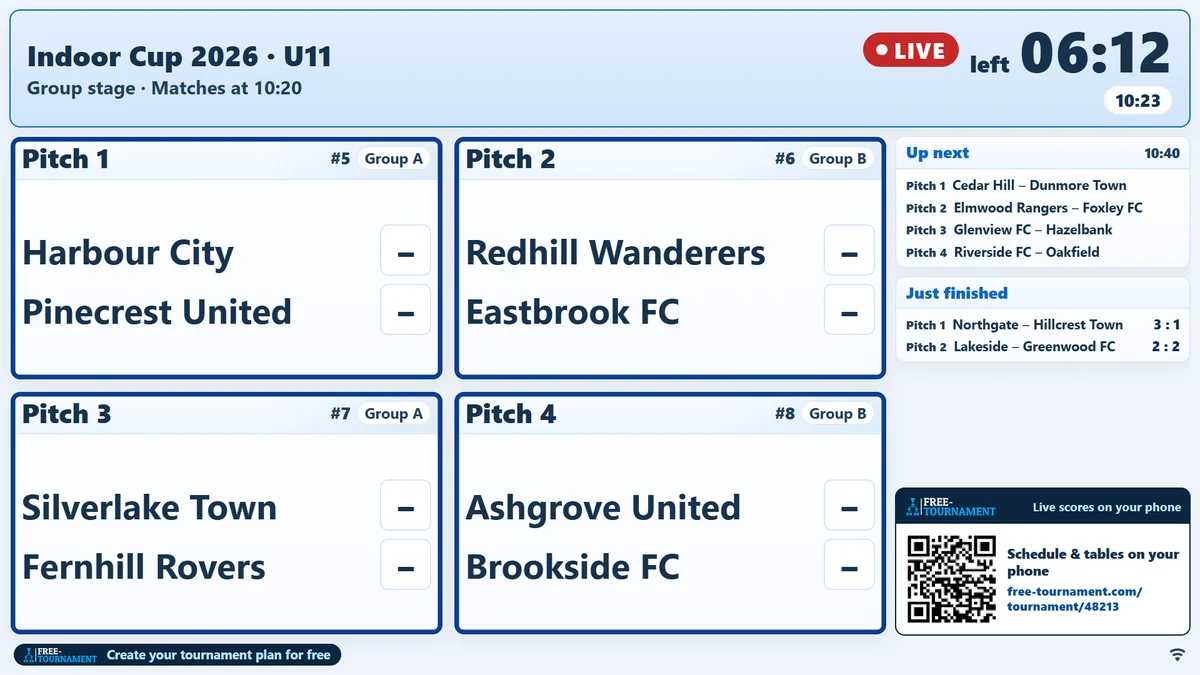
Turn a laptop on a projector or a TV into your tournament’s scoreboard: live matches, tables and what’s coming up next, plus the time remaining when the match clock is on. Start the rounds from your phone while spectators follow everything live on the schedule.
- The projector shows the right thing automaticallyThe current kick-off round, with the time remaining when the match clock is on, then the next round – nobody needs to click on the projector.
- Control from your phoneOn your phone you press “Start” once per kick-off round, and all pitches run on the same clock.
- Spectators follow along liveOn the public schedule, running matches show LIVE and, when the match clock is on, the time remaining.
This is what the projector shows
How it works
Set up Stadium Mode
Open the “Stadium mode” tab in tournament management. The presentation works straight away. For the time remaining, tap “Turn on match clock” on the “Match clock” card. You can then set the time display and start countdown via “Edit”.
Start the display on the projector
In the tab, under “Link for”, choose “All pitches” (or a single pitch for a tablet at the pitch), copy the link and open it on the projector laptop or TV. On the tournament page you can also use the “Stadium mode” button → “Open presentation”. “Start display” switches to full screen and, where the browser supports it, keeps the screen awake.
Start rounds from your phone
On tournament day, open the tournament page while signed in. The controls appear at the bottom above “Save”: tap “Control the clock on this device” once, then press “Start” for each kick-off round. Pausing and corrections are under ⋯. At 0, full time is called automatically for all matches in the round.
What the screen shows
The display follows the course of play by itself: as soon as results are saved or a round is started, it moves on. You set it up in the “Stadium mode” tab; nothing is operated on the screen itself.
Running matches and round clock
Large tiles with pitch, teams and score, running matches marked LIVE. With the match clock on, the round clock sits large in the header and, depending on your settings, counts down to kick-off after “Start”, with the last 10 seconds filling the screen.
Up next and breaks
Towards the end of a round and after the final whistle, a strip shows which matches follow next on which pitch. During a longer break, the screen shows tables, “Up next” and the QR code.
Tables and Just finished
The side panel shows tables (rotating if there are several groups), freshly saved results, the LiveTicker and, with Premium, your sponsor logos. You can switch it off.
QR code to the schedule
Spectators scan the code and get the public schedule with all results on their own phone.
Big results, final and award ceremony
With the match clock, a round’s results appear large for 20 seconds after saving, and the final gets its own final-score screen. After the last match, the ranking with podium stays up for the award ceremony.
Display for a single pitch
With the “Pitch X” link, a tablet at the pitch shows only that pitch: the current match and the next two matches there.
The match clock in brief
One clock for the whole kick-off round instead of stopwatches at every pitch.
One clock per kick-off round
All matches that kick off at the same time run together – on all pitches at once.
The same on every device
Projector, helpers’ phones and spectators see the same time, even after reloading the page.
Time remaining or time played
You decide whether the clock counts down or up. Changes apply from the next start.
Keeps running without a connection
If the internet drops briefly, the clock keeps counting on every device and catches up with the latest state on its own.
Sounds for atmosphere at the pitch
PremiumWith Premium, the presentation device plays music and sounds for kick-off and full time when the match clock is on. Without Premium, the clock works the same, just without sound.
- Music before the start and before the endFor kick-off and full time you pick a music track and a length of 10, 15, 20, 30 or 60 seconds. The music ends exactly with the sound.
- Start sound and end soundA sound plays at kick-off and at 0; the default is the horn. You can also go without a sound.
- Preview in the dialogListen to tracks and sounds right in the settings before you save.
- Sound only where it belongsSound plays on the presentation device and, if you want, on the control phone. Use only one sound device per location, otherwise you get an echo. Spectators’ phones always stay silent.
Your sponsor on the projector
PremiumWith Premium, the display shows your sponsor’s logo full size under “Presented by” for 4 seconds every 30 seconds. Without Premium, free-tournament.com appears in its place.
- Full size with a smooth fadeThe logo fills the screen while the tournament name, LIVE and the clock stay visible at the top. All screens fade in at the same time.
- Never at the wrong momentNothing is shown during the start phase, the final phase, the final whistle, results, the final or the final standings.
- In the side panel tooThe sponsor logo also stays permanently in the side panel and on the break screen.
- One switch is enoughUpload the logo with the tournament. In the “Stadium mode” tab you turn the overlay on or off with “Show sponsor”.
Tournament day checklist
- The day before: switch on the match clock, choose the time display and start countdown; with Premium, set up and preview music and sounds.
- Do a test run the day before: open the presentation on the projector, click “Start display”, start a round and reset it.
- Projector laptop: turn off power saving and the screen saver, run the browser in full screen. Sound through the PA system, fairly low and from this device only – music can drown out whistles.
- Internet for all devices: ideally a phone hotspot at the tournament desk, not the projector laptop itself. Test the reception in the hall beforehand. If the network drops briefly, the clock keeps running; you can only start the next round once you’re back online.
- Open the link from the tab on the projector (“All pitches”, or “Pitch X” for tablets at the pitch) and click “Start display”.
- Helpers enter results right after the final whistle so the projector moves on. Anyone entering interim scores ticks “Active”. Only the device where “Control the clock on this device” was tapped starts the rounds.
Good to know
- The presentation and match clock are free as long as you operate them yourself. You need Premium for music and sounds, for team and sponsor logos on the screen, and if helpers with their own account should operate the clock. Without Premium, the display briefly shows free-tournament.com from time to time; with Premium it shows your sponsor instead.
- Stadium Mode is available for tournaments with a group stage, a knockout round or both – not for leagues and Funino.
- Helpers operate it with their own account if you’ve added them as editors and have Premium. They don’t need Premium of their own.
- No half-time, no stoppage time, no extra time: a round runs straight through to 0. You can correct it with −1/+1 min or “Set time”.
- Music and sounds come from our selection; you can’t upload your own files.
- After tournament day, the tournament is archived overnight. From then on, the presentation and match clock are no longer available; the schedule remains.
Frequently asked questions about Stadium Mode
Ready for tournament day?
Create your tournament. You’ll then find the “Stadium mode” tab in tournament management; for existing tournaments, go via “My Tournaments”.
Go to my tournaments